The moment you reset your Samsung phone and face the Google lock screen, frustration begins. Many users feel trapped, unable to access their own device after forgetting their old login details. This security feature, called FRP, can cause serious trouble if you don’t know the proper steps.
That’s where Dr.Fone Screen Lock becomes your trusted helper. It provides a safe and simple way to unlock your Samsung phone without technical stress. So, this article explores how FRP unlocking is fast and reliable.
Part 1. What Samsung FRP Is & Why It Blocks Access
Samsung FRP, or Factory Reset Protection, is a native security layer on Samsung devices. It was added by Google from Android 5.1 to keep user information safe after a reset. The process links the phone to the Google account added during setup and stays active. When the device is reset through recovery mode or other untrusted methods, FRP triggers protection.
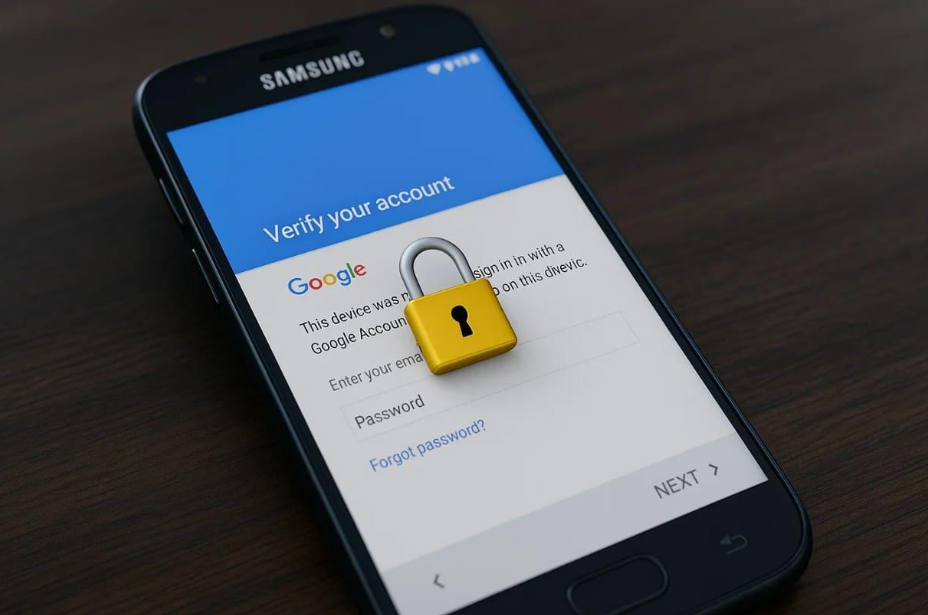
After this reset, the phone demands the previously synced Google account before continuing further. Plus, this process blocks access completely if the correct details are forgotten or unavailable. The goal is to stop anyone from wiping a lost device and using it freely. Therefore, many users rely on an Android phone unlocker when they suddenly lose access.
Part 2. Why Choose Dr.Fone Screen Lock Tools for Samsung FRP
Many FRP solutions claim to work for Samsung devices, but not all are reliable or secure. Before learning how Dr.Fone works, below is a table to compare it with general methods:
| Feature | Dr.Fone Screen Lock | General Methods |
| Ease of Use | Simple interface with step-by-step instructions | Often requires technical skills or complicated steps |
| Device Compatibility | Supports 15+ brands, 2,000+ Samsung and Android models | Limited to certain models or older Android versions |
| FRP Success Rate | Nearly 100% success on Snapdragon and MTK chipsets | Success varies; it often fails on newer devices |
| Unlock Speed | One‑Click Removal completes FRP in minutes | Manual methods can take hours or more |
| Safety | Safe unlock, no damage | Complete data loss, errors, or device bricking |
| Support | Works on the latest Android 16 and earlier versions | Often unsupported on new software updates |
| Online Option | Web-based unlock available, no installation needed | No web-based remote solution available |
This table clearly shows why Dr.Fone Screen Lock is a superior choice for Samsung FRP removal. Thus, the following parts will help you learn how the FRP bypass process works on Dr.Fone:
1. Dr.Fone – Screen Unlock (Android): Full FRP Removal Tool
This dedicated program is a powerful tool for bypassing Samsung FRP quickly. It provides nearly 100% FRP success on both Snapdragon and MTK chipsets. Plus, the tool works on Android 16 and all previous versions without compatibility issues. For bypassing FRP, Dr.Fone Screen Lock supports 15+ Android brands, including Samsung and Xiaomi phones.
The one‑click removal feature completes the entire FRP bypass process within minutes efficiently. While bypassing, it automatically selects the proper mode for connected devices. Apart from that, Dr.Fone can also remove your phone’s screen locks, such as patterns and passwords. For that, it supports 22 brands and over 2,000 Android phones and tablet models.
Detailed Guide to Bypass FRP Lock Through Dr.Fone – Screen Unlock (Android)
Go through the following guide to help you unlock Samsung FRP using this Android unlocker:
Step 1. Navigate to the FRP Removal Feature
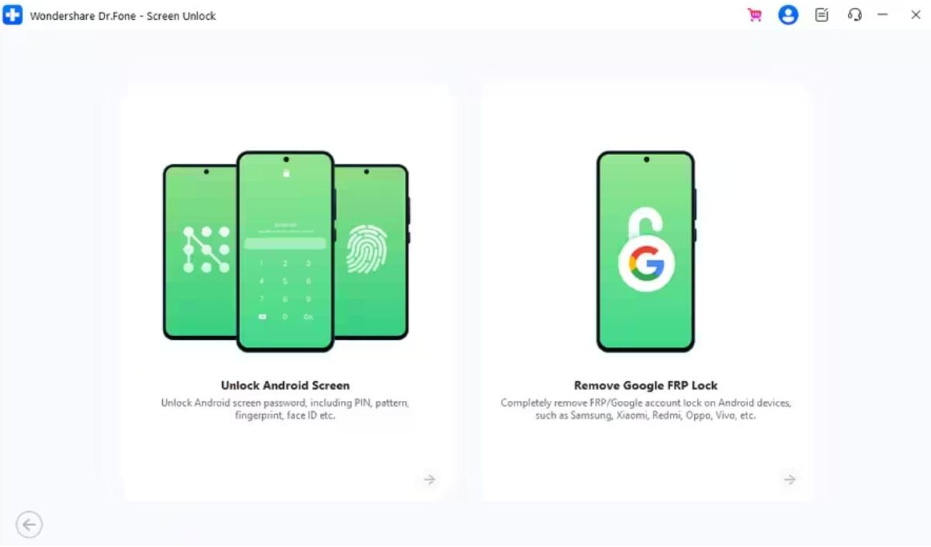
Upon accessing the “Toolbox” tab, select the “Screen Unlock” feature and then choose “Android.” From the available options, click “Remove Google FRP Lock” and connect your FRP-locked Samsung device.
Step 2. Select the Correct Android Unlock Method
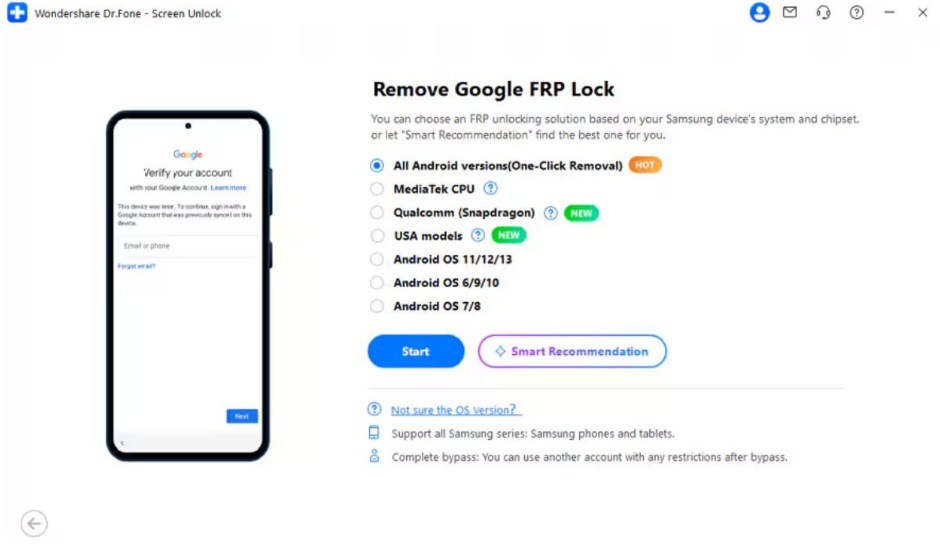
Afterward, choose “Samsung” as your device brand, then click “Start” to continue. When prompted, select “All Android Versions (One‑Click Removal)” and confirm by pressing “Start.”
Step 3. Initiate FRP Unlock on Your Device
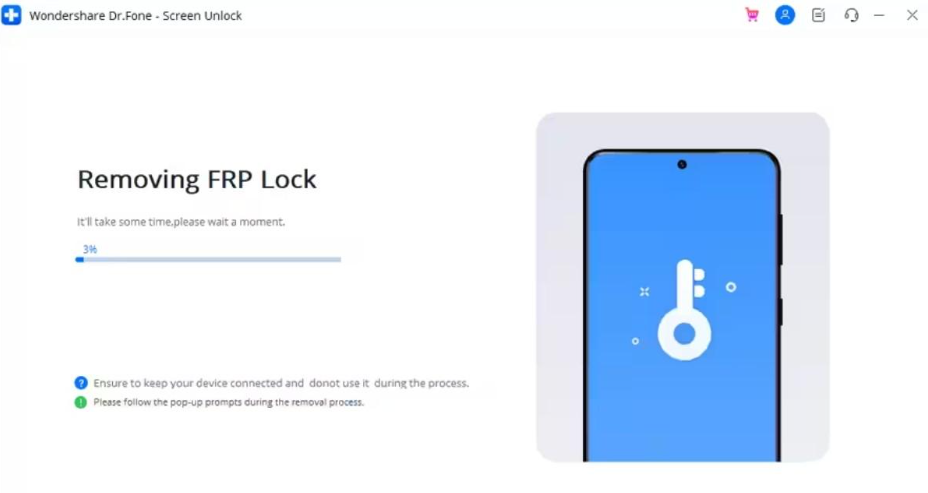
Going ahead, adhere to the displayed instructions to enable “USB Debugging” and tap “Authorized.” The software will now remove the Google FRP lock and show progress in real-time.
2. Dr.Fone – Online Unlock: No-Installation Required Solution
Dr.Fone – Online Unlock offers a web-based FRP removal process, specially designed only for Samsung. Users only need to provide basic device details like model and IMEI or serial number. This information is used temporarily for compatibility checks and never stored anywhere afterward. The system then runs a secure remote unlock operation within a few short minutes.
In addition, it supports all Samsung series, including Galaxy S, Z, C, and W models. Plus, compatibility extends across One UI 5.0 to the latest One UI 7 system versions. Dr.Fone Online Unlock works globally, covering every country and region without restriction. Besides, this Samsung FRP removal tool ensures 100% success across all Samsung devices efficiently.
Stepwise Guide to Unlock Samsung FRP via Dr.Fone Online Unlock
You can adhere to the given guide to unlock your device’s FRP lock online using this web tool:
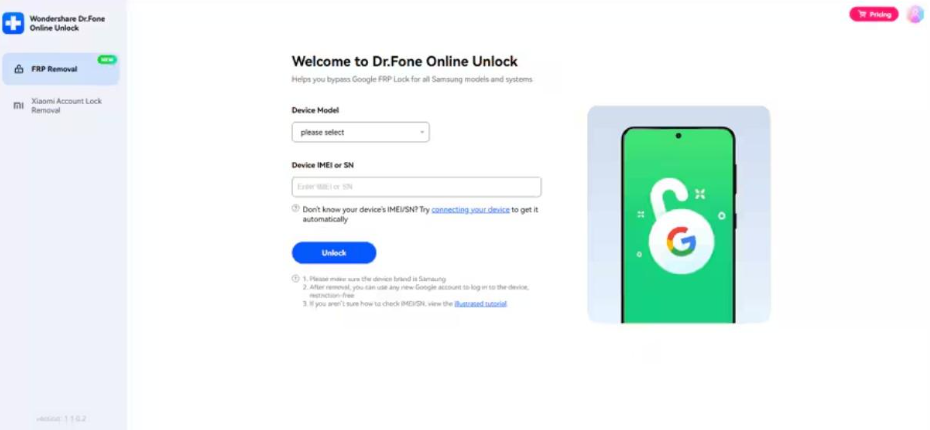
Step 1. Access the Online FRP Unlock Tool
As you open Dr.Fone Online Unlock in your preferred browser, go to the “FRP Removal” section. Select your “Samsung” model, then enter the IMEI manually or use automatic detection by connecting your device.
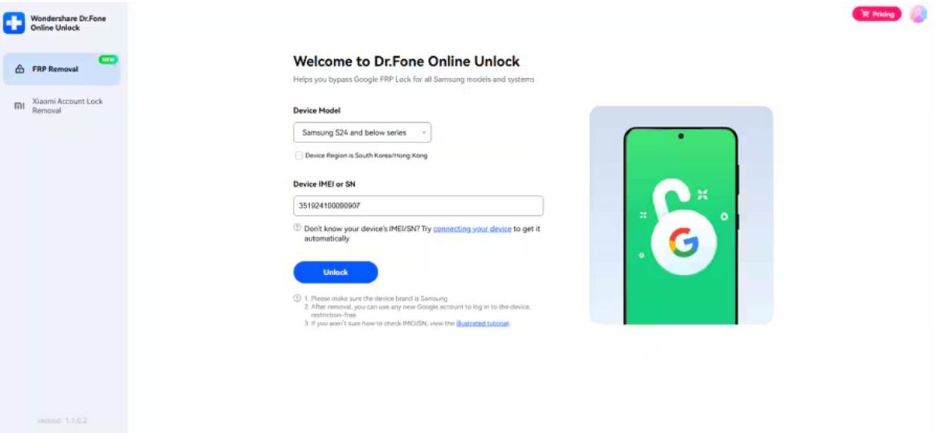
Step 2. Start FRP Removal on Your Samsung
After verifying the device information, press the “Unlock” button to proceed. The system will remove FRP remotely and guide you to complete the activation.
Part 4. 5 Common Problems Solved by Dr.Fone Screen Lock
Even reliable Samsung devices can face issues when FRP locks are triggered unexpectedly. Dr.Fone Screen Lock resolves common challenges, making FRP bypass simple for everyone. So, here are a few key points to show the benefits of using Dr.Fone:
- Account Locked: Sometimes users forget their Google login after a reset, blocking access. Dr.Fone helps recover access quickly through its secure and guided unlocking steps.
- FRP Triggered: Factory resets done incorrectly may trigger FRP on Samsung devices. Yet, this tool simplifies bypass through automatic detection and proper unlocking prompts.
- Device Incompatible: Some phones fail with manual methods due to a software mismatch. So, it supports wide device models and versions for consistent unlocking every single time.
- Slow Process: Traditional unlocking methods are both slow and confusing without results. Dr.Fone performs removal tasks with its online or software-assisted approach.
Part 5. Complete Guide to Accessing and Disabling Samsung FRP Lock
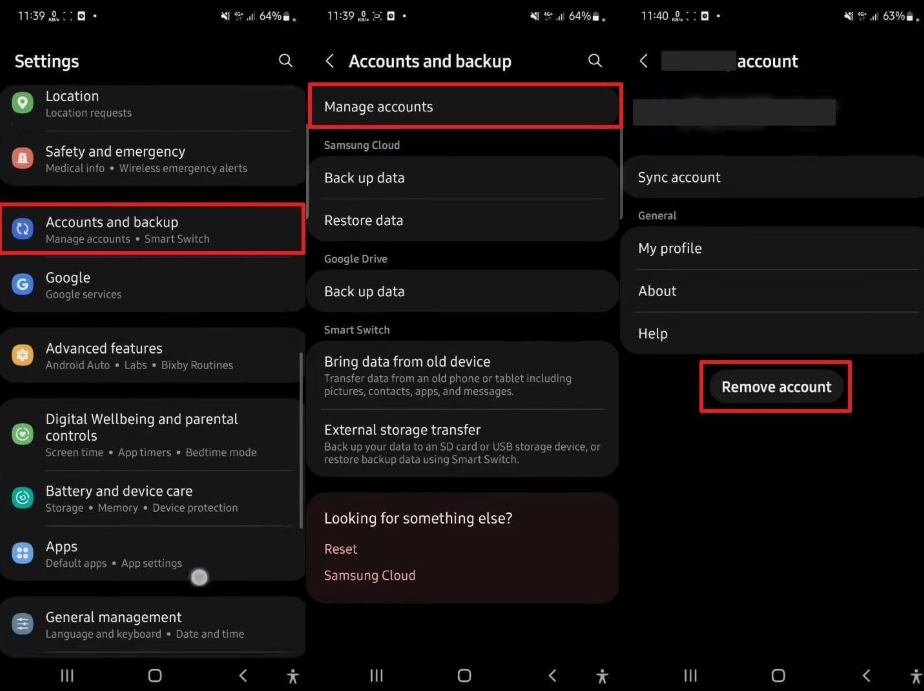
Accessing and disabling the Samsung FRP lock requires careful steps to prevent future problems. This method actually involves you signing out of your Google Account before resetting your device. Thus, following these steps ensures smooth access and prevents FRP from blocking the device:
Instruction. Go to “Settings” to open the “Accounts and Backup” section and select “Manage Accounts.” Next, pick the “Google” account you’re signed into and tap “Remove Account” to delete it.
Conclusion
To conclude, Samsung FRP is helpful for security, but it can create sudden access issues after resets. With the right tools, you can unlock safely without risking your data. This guide showed how to understand FRP, avoid future locks, and use trusted solutions. So, if you want a safe way to handle Samsung FRP, Dr.Fone Screen Lock is highly recommended for everyday users.