The moment you change phones, your WhatsApp number becomes the most sensitive link. Many users focus on devices, but forget that verification controls access and message history. Without a clear plan, number changes can cause delays or confusing login loops. The real challenge is keeping WhatsApp active while moving numbers and switching phones.
In this guide, you will learn why numbers matter, how verification works, and when things fail. You will also learn the safest order to change numbers and move devices. Besides that, tools like Dr.Fone – WhatsApp Transfer help guide users through safer WhatsApp moves.
Part 1: Why WhatsApp Accounts Depend on Your Phone Number
WhatsApp builds each account around a phone number instead of usernames only. This design helps verify identity, but ties access to number changes. Therefore, device verification is important to learn how to transfer WhatsApp messages to new phone. If the number fails verification, chats remain stored but are temporarily unreachable. The table below shows how phone numbers control login, backup, and migration steps:
| Reason WhatsApp Depends on Phone Number | Explanation |
| Identity Verification | WhatsApp uses your phone number as a secure identity, not email or username. |
| Easy Contact Discovery | It instantly connects you with contacts saved in your phone’s address book. |
| One Account per Number | This prevents duplication and keeps your chat data linked to one account. |
| Encryption and Security | Your number helps maintain end-to-end encryption tied to your unique identity. |
| Seamless Setup | Using your phone number simplifies activation across devices and resets. |
Part 2: What to Do When WhatsApp Verification Fails During Number Transfer
Verification issues occur when WhatsApp cannot confirm your number during migration. This can happen due to various reasons, like network problems or multiple attempts. Understanding verification is key before learning how to transfer data from one phone to another. So, here are the main points to fix verification failures effectively:
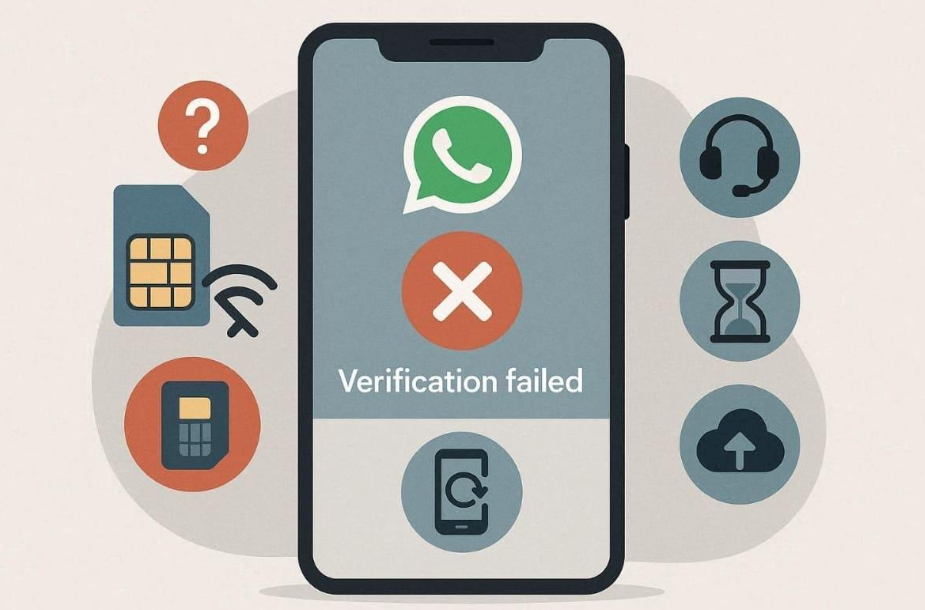
- Check SIM Card: Ensure your SIM is active and you can receive messages without any delay. Inactive or expired SIM cards will block verification codes from reaching you.
- Verify Connection: A stable Wi-Fi or mobile data connection is essential for verification. Weak or unstable networks prevent WhatsApp from sending or receiving codes.
- Request Call Code: Select the voice call option when the SMS verification code doesn’t arrive. Voice calls bypass common SMS delays during the number transfer process.
- Wait Out Temporary Bans: Stop verification retries after three consecutive failed attempts occur. Wait exactly 24 hours before attempting verification code again.
- Use Backup Restoration: Enable cloud backup before starting any phone number change. Restore chats automatically once WhatsApp verification finally succeeds.
Part 3: Best Sequence to Change Your Number and Switch to a New Phone
Changing your phone number and device in the correct sequence prevents account confusion. Doing both together can trigger verification delays or message syncing issues. Always prepare your backup first, then update your number before reinstalling WhatsApp.
This keeps your chats linked without duplication or access errors. Moreover, understanding how to transfer WhatsApp messages to a new phone starts with proper sequencing. Thus, follow these steps to change your number:
For Android
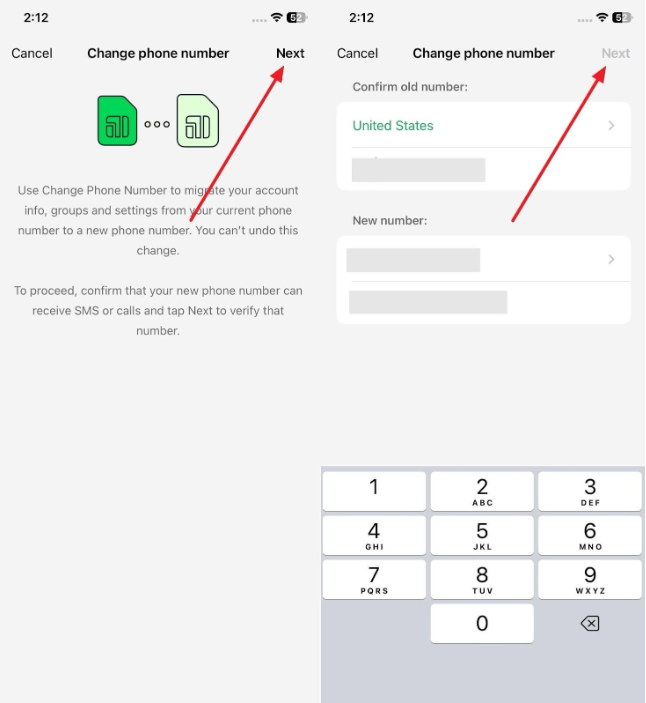
Step 1. Upon accessing “Settings,” head to the “Account” section and choose the “Change Phone Number” option.
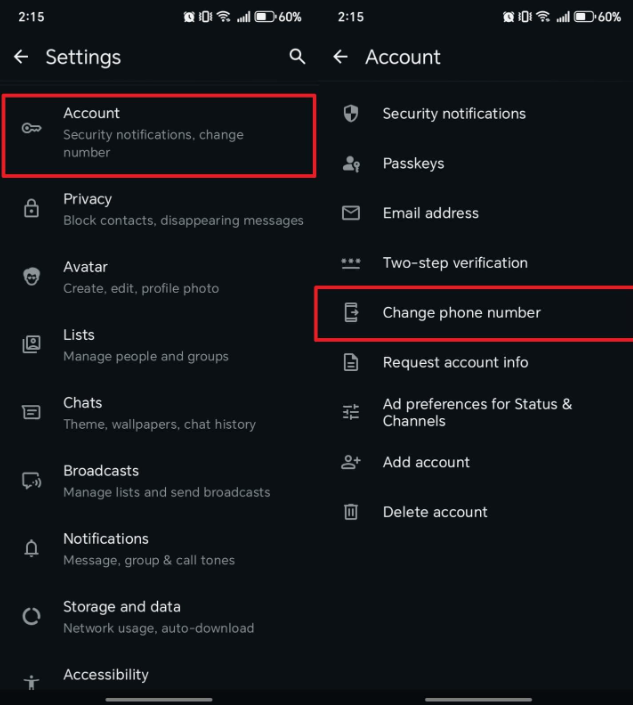
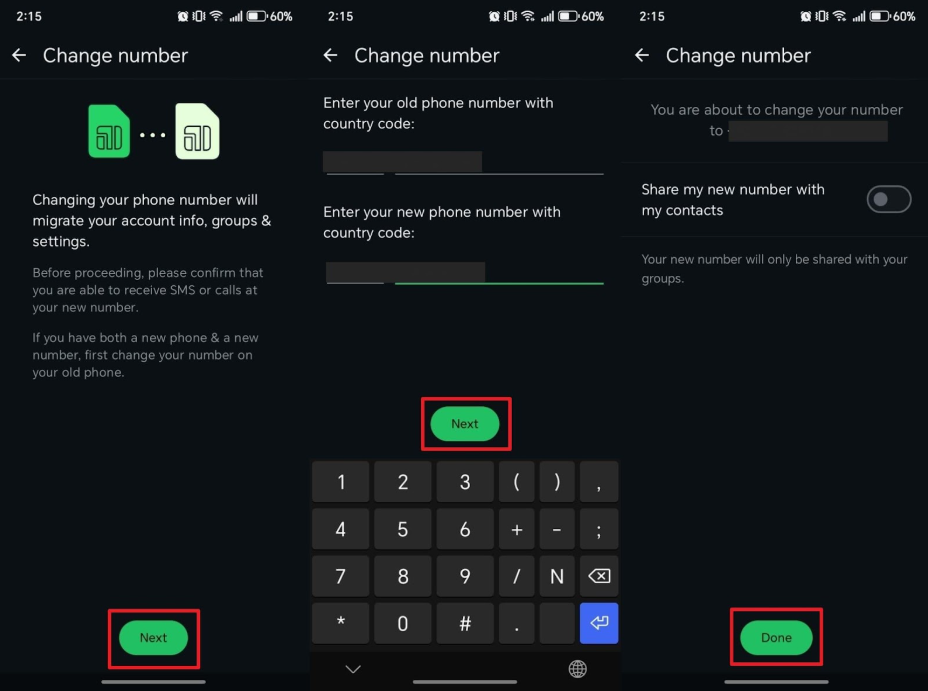
Step 2. Afterward, tap “Next” to enter your old and new numbers and then press “Next.” Here, confirm your new phone number and press the “Done” button.
For iPhone
Step 1. From the “Account” section on your app’s settings, tap “Change Phone Number.”
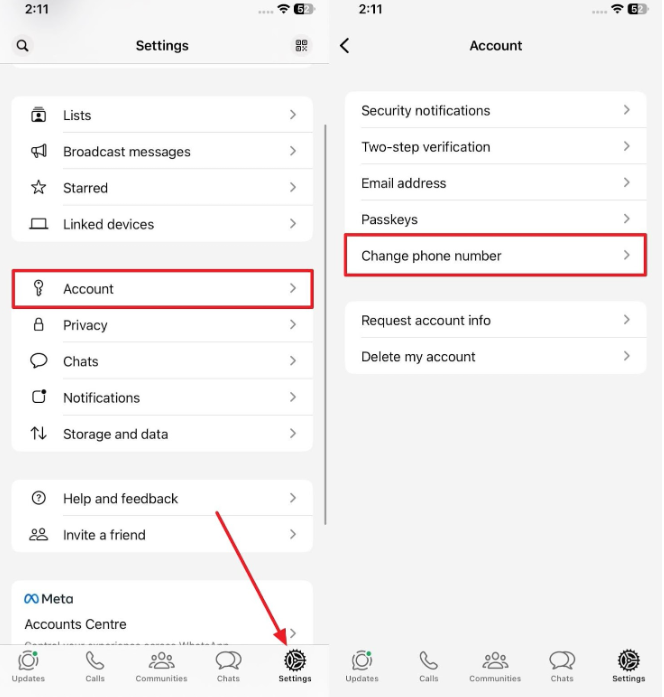
Step 2. Following this, opt for “Next” to type both your old and new phone numbers. Afterward, tap “Next” and press the “Done” option on the next screen.
Part 4: What to Do If You’re Locked Out During Verification
Getting locked out during WhatsApp verification can be stressful, but it is temporary. Most users trigger this by repeating verification attempts or switching devices mid‑process. The key is to remain calm and follow recovery steps carefully. These actions restore access without risking further lockouts or number mismatches. So, review the table below for the best solutions when you’re locked out:
| Situation | Recommended Action | Why It Helps |
| Multiple Failed Attempts | Stop retries and wait 24 hours before the next attempt. | Prevents longer verification bans from repeated failed code entries. |
| SIM Not Receiving Codes | Insert the SIM into another phone and test message delivery first. | Confirms SIM functionality and ensures code delivery resumes. |
| Verification Timer Expired | Restart WhatsApp and choose the “Resend Code” option. | Refreshes app communication with WhatsApp servers for new verification. |
| Using the Wrong Number | Double-check both digits and the country code before retrying. | Avoid mismatched verification linked to an incorrect number entry. |
| Stuck Between Devices | Complete verification on the old phone before moving chats. | Keeps account identity consistent during device transfers. |
Part 5: Using Dr.Fone Phone Switch and WhatsApp Transfer to Avoid Number-Change Errors
When switching phones and numbers together, mistakes lead to data loss or confusion. Many users mistakenly reset devices or lose WhatsApp chats while transferring accounts manually. This makes a guided solution essential for managing transfers and migrations across systems. Here, Dr.Fone provides a complete fix for these number‑change problems. Moreover, Dr.Fone – WhatsApp Transfer focuses on keeping WhatsApp chats complete during number changes.
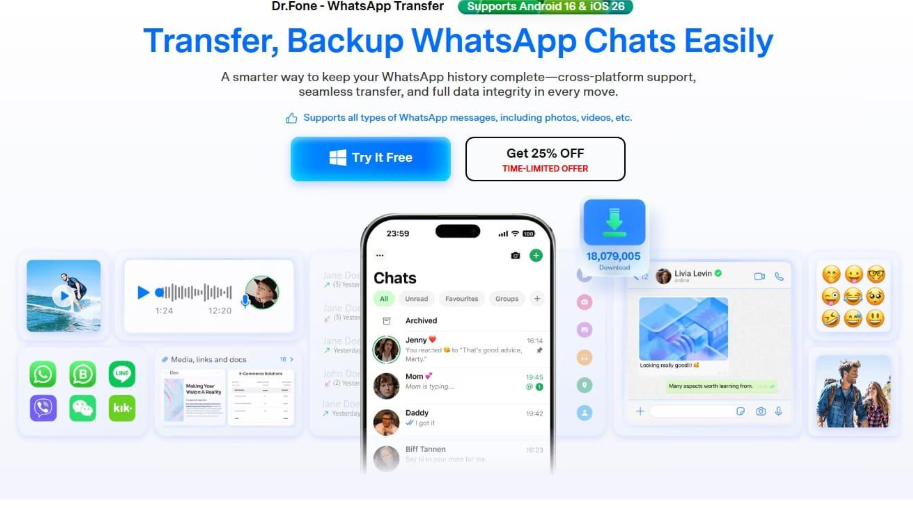
It supports Android 16 and iOS 26 for modern device compatibility. It offers you the chance to move all your WhatsApp data, including chats and multimedia. The tool’s transfer speeds make large WhatsApp migrations up to 96% faster overall. Besides, Dr.Fone – Phone Transfer works as a one‑click cross‑platform tool for whole data movement. The program supports iOS to Android, Android to iOS, and same-platform switches.
Key Features
- Business Compatible: Handles both regular WhatsApp and WhatsApp Business chats in one toolkit.
- High Security: Designed with 100% data security standards to protect personal information integrity.
- File Selection: Allows choosing specific file types instead of transferring unnecessary data.
Guide to Move WhatsApp Between Phones via Dr.Fone – WhatsApp Transfer
Head to the following simplified guide to learn how to transfer WhatsApp messages to a new phone using Dr.Fone:
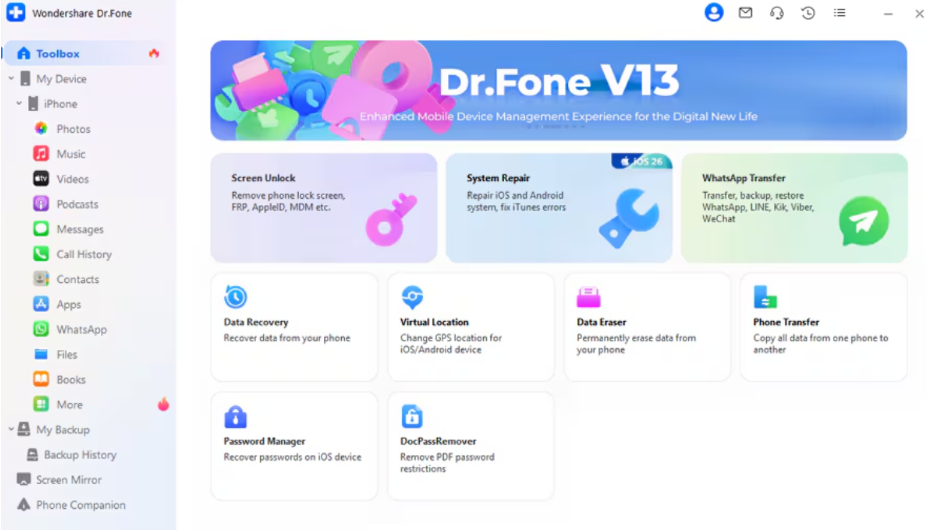
Step 1. Open WhatsApp Migration Inside the Tool
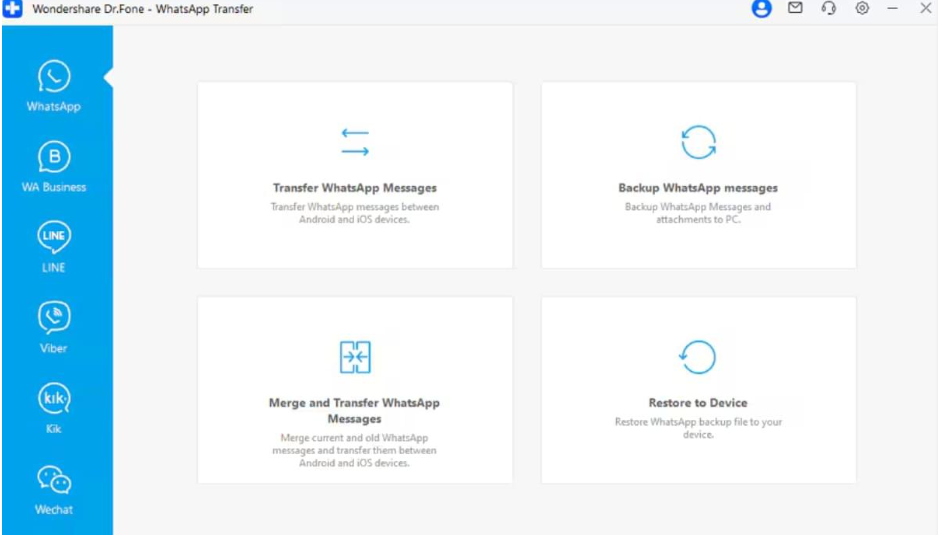
Go to the “Toolbox” tab and then choose the “WhatsApp Transfer” feature. Plug both phones into the computer and select “Transfer WhatsApp Messages” to continue.
Step 2. Pick WhatsApp Data for Transfer
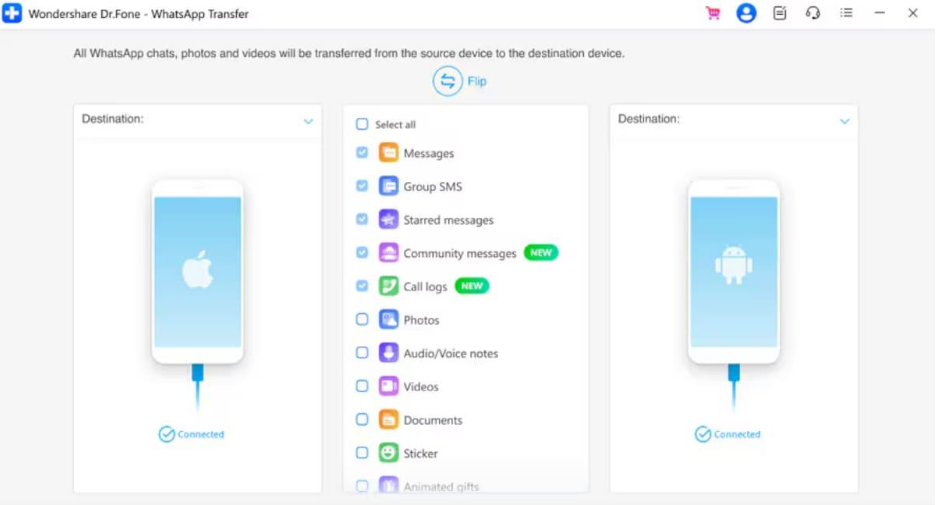
Check the listed data to select the WhatsApp content you want to move and click “Transfer.”
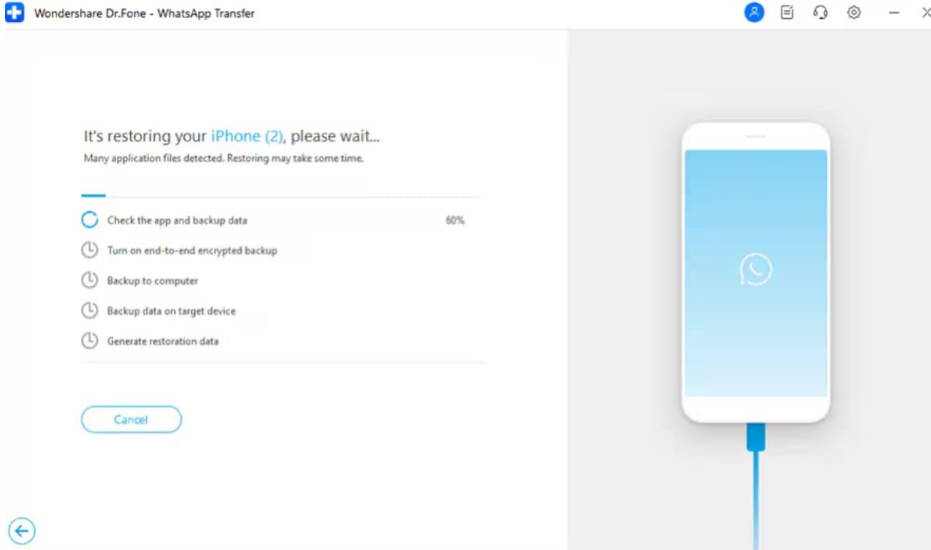
Step 3. Begin the WhatsApp Transfer Process
Follow the on-screen instructions, and the software will start transferring the chosen WhatsApp data.
Instructions to Transfer Phone Data via Dr.Fone – Phone Transfer
You need to go through the given guide to move your phone’s data using this data transfer program:
Step 1. Open the Phone Transfer Feature
Select the “Phone Transfer” option and connect both your devices to the computer using official USB cables.
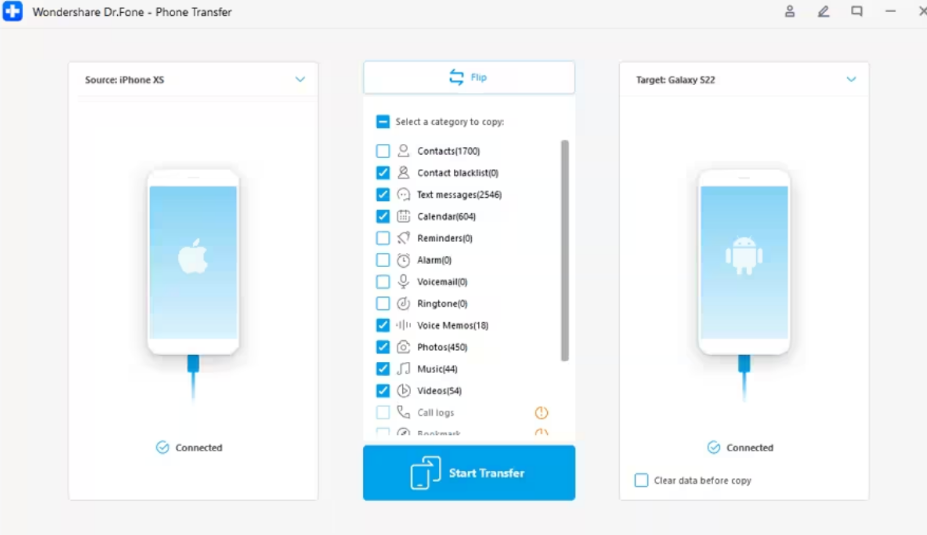
Step 2. Select the Phone Data for Migration
Once both devices are detected, mark the data you want to copy and click the “Transfer” button.
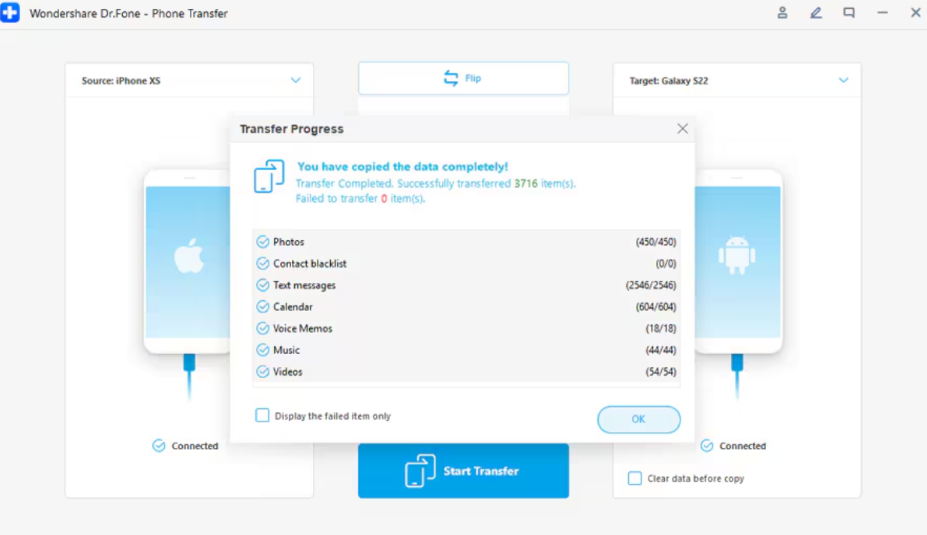
Step 3. Begin the Data Transfer Process
Follow the instructions shown on the screen, and Dr.Fone will start transferring your selected data.
Conclusion
To conclude, moving your phone number and WhatsApp to a new device works well with good preparation. The right timing and simple recovery steps keep chats safe from everyday problems. You now know how to avoid verification delays and account mix-ups. For anyone wanting an easier way to move WhatsApp data, Dr.Fone – WhatsApp Transfer handles everything. Besides, Dr.Fone – Phone Transfer stands out when you want an effortless solution to move phone data.